Settings
 Fast Delivery
 Free Shipping
 Incoterms
 Payment Types


 Marketplace Product

Mfr Part # SC1631
RASPBERRY PI PICO 2 RP2350
Raspberry Pi

Microcontrollers Raspberry Pi MCU
As your projects scale, simple debugging techniques like blinking LEDs or printing messages over serial may no longer be sufficient to diagnose subtle bugs or understand program flow. Step-through debugging allows you to pause program execution at specific points (breakpoints), examine variable values in real-time, and execute code one line or instruction at a time, giving you deep visibility into how your program actually runs on hardware. In this tutorial, we’ll explore how to use the Raspberry Pi Debug Probe to perform step-through debugging in Rust.
Note that all code for this series can be found in this GitHub repository.
defmt is an efficient logging framework specifically designed for embedded systems that works by storing format strings on the host computer rather than in the microcontroller's limited flash memory. This way, the device only sends small integer indices over RTT (Real-Time Transfer) to reference which message to print, along with any variable data. This approach dramatically reduces flash usage and runtime overhead compared to traditional string formatting, making it ideal for resource-constrained embedded systems where you need fast, low-impact debug output without sacrificing precious memory or affecting timing-sensitive code.
Note that defmt only works over the SWD port on the Raspberry Pi Pico and Pico 2, so you'll need the Raspberry Pi Debug Probe (or other SWD debugging hardware) to read defmt messages.
Additionally, the RP2040 and RP2350 microcontrollers cannot perform step-through debugging on their own. They require external hardware debuggers connected via the SWD (Serial Wire Debug) interface to enable features like breakpoints, variable inspection, and single-stepping through code. As a result, we can use the Debug Probe to assist with both reading the efficient defmt messages as well as providing other hardware debugging capabilities.
For this series, you will need the following components:
Connect the hardware as follows on your breadboard:
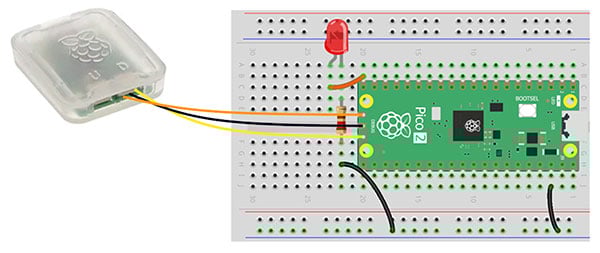
Note that we will just be using an LED attached (through a 220 Ω resistor) to GPIO 15 on the Raspberry Pi Pico 2.
Attach one of the included cables to the port marked “D” (for “debug”) on the Debug Probe. We will not use the “U” port (which performs UART to USB serial translation). Connect the orange wire to the SWCLK pin on the Pico 2 (pin 1 on the SWD port), connect the black wire to GND (pin 2 on the SWD port), and connect the yellow wire to SWDIO (pin 3 on the SWD port).
Start by copying the blinky project to use as a template. Navigate to your workspace directory and copy the entire usb-serial project:
cd workspace/apps
cp -r blinky timer-interrupt
cd timer-interrupt
If a target/ directory exists from previous builds, you can delete it to start fresh (though Cargo will handle rebuilding automatically):
rm -rf target
Cargo.toml
We need to make several changes to Cargo.toml to support defmt.
[package]
name = "blinky-debug"
version = "0.1.0"
edition = "2024"
[dependencies]
rp235x-hal = { version = "0.3.0", features = ["rt", "critical-section-impl"] }
embedded-hal = "1.0.0"
cortex-m = "0.7.7"
cortex-m-rt = "0.7.5"
defmt = "1.0.0"
defmt-rtt = "1.0.0"
panic-probe = { version = "1.0.0", features = ["print-defmt"] }
[profile.dev]
debug = 2
opt-level = 1
lto = false
codegen-units = 1
[profile.release]
opt-level = "s"
lto = true
codegen-units = 1
strip = true
Add defmt = "1.0.0" for the core logging framework, defmt-rtt = "1.0.0" as the RTT transport layer that sends log messages to the debug probe, and panic-probe = { version = "1.0.0", features = ["print-defmt"] } to handle panics by printing debug information through defmt. We also add a [profile.dev] section with debug = 2 for full debug symbols, opt-level = 1 for minimal optimizations that keep code execution order predictable, lto = false for faster compilation, and codegen-units = 1 to prevent parallel compilation that could reorder code. These settings balance build speed with debuggability while keeping the program behavior close to what you wrote.
There are only a few changes we need to make to src/main.rs, but they are critical for enabling defmt logging:
#![no_std]
#![no_main]
// Alias our HAL
use rp235x_hal as hal;
// Import traits for embedded abstractions
use embedded_hal::delay::DelayNs;
use embedded_hal::digital::OutputPin;
// Debugging output
use defmt::*;
use defmt_rtt as _;
// Let panic_probe handle our panic routine
use panic_probe as _;
// Copy boot metadata to .start_block so Boot ROM knows how to boot our program
#[unsafe(link_section = ".start_block")]
#[used]
pub static IMAGE_DEF: hal::block::ImageDef = hal::block::ImageDef::secure_exe();
// Set external crystal frequency
const XOSC_CRYSTAL_FREQ: u32 = 12_000_000;
// Main entrypoint (custom defined for embedded targets)
#[hal::entry]
fn main() -> ! {
info!("Starting blinky");
// Get ownership of hardware peripherals
let mut pac = hal::pac::Peripherals::take().unwrap();
// Set up the watchdog and clocks
let mut watchdog = hal::Watchdog::new(pac.WATCHDOG);
let clocks = hal::clocks::init_clocks_and_plls(
XOSC_CRYSTAL_FREQ,
pac.XOSC,
pac.CLOCKS,
pac.PLL_SYS,
pac.PLL_USB,
&mut pac.RESETS,
&mut watchdog,
)
.ok()
.unwrap();
// Single-cycle I/O block (fast GPIO)
let sio = hal::Sio::new(pac.SIO);
// Split off ownership of Peripherals struct, set pins to default state
let pins = hal::gpio::Pins::new(
pac.IO_BANK0,
pac.PADS_BANK0,
sio.gpio_bank0,
&mut pac.RESETS,
);
// Configure pin, get ownership of that pin
let mut led_pin = pins.gpio15.into_push_pull_output();
// Move ownership of TIMER0 peripheral to create Timer struct
let mut timer = hal::Timer::new_timer0(pac.TIMER0, &mut pac.RESETS, &clocks);
// Blink loop
loop {
led_pin.set_high().unwrap();
debug!("LED on");
timer.delay_ms(500);
led_pin.set_low().unwrap();
debug!("LED off");
timer.delay_ms(500);
}
}
We remove the manual PanicInfo and #[panic_handler] implementation since panic-probe will now handle panics for us, providing better debug information when the program crashes.
At the top of the file, we add use defmt::*; to import defmt's logging macros and use defmt_rtt as ; to automatically register RTT as the transport layer. Note that the underscore import syntax as _ means we're importing the crate for its side effects (registering itself) rather than using any specific items from it. We also add use panic_probe as _; to let panic-probe handle our panic routine, which will format panic messages through defmt for better debugging output.
Throughout the code, we add logging statements at different severity levels using defmt's macros. We use info!("Starting blinky") at the beginning of main() to log a startup message. Inside the blink loop, we add debug!("LED on") and debug!("LED off") statements that print each time the LED state changes.
Note that defmt has several log levels:
You control which levels are included at compile time using the DEFMT_LOG environment variable (set in .cargo/config.toml). Setting it to a level includes that level and all higher-severity levels (e.g., DEFMT_LOG=debug includes debug, info, warn, and error, but excludes trace).
To build and run the program with defmt logging, you'll need to install probe-rs, a modern Rust tool for flashing and debugging embedded targets. On your host computer (not inside the Docker container!), follow these instructions to install probe-rs.
Note that on Windows, you will likely need to install drivers for your Debug Probe. Download and run Zadig as administrator, then plug in your Debug Probe. In Zadig, go to Options > List All Devices, select "CMSIS-DAP v2 Interface" from the dropdown, and make sure WinUSB is selected as the target driver. If it's not already installed, click the Install Driver button.
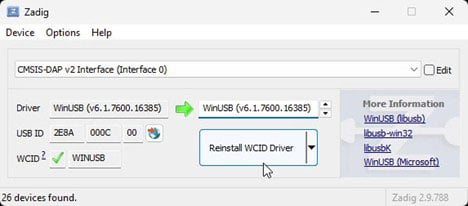
On Windows, you will also likely need to add probe-rs to your Path. In PowerShell, run this:
$env:Path = "C:\Users\sgmus\.cargo\bin;$env:Path"
Inside the Docker container, build the project:
cargo build
Ensure your Debug Probe is connected to both your computer and the Pico 2's SWD port, with both boards powered via USB. On your host computer (not in the Docker container!), navigate to the project directory and flash the program using probe-rs. Notice that we’re using the ELF file this time (instead of converting it to a UF2 file).
cd introduction-to-embedded-rust/workspace/apps/blinky-debug
probe-rs run --protocol swd --speed 1000 --chip RP235x target/thumbv8m.main-none-eabihf/debug/blinky-debug
The --speed 1000 parameter sets a slower SWD clock speed (1 MHz instead of the default 4 MHz) for more reliable connections, especially with longer cables or noisy environments.
If everything is configured correctly, you should see your defmt messages printed to the terminal: the "Starting blinky" info message followed by alternating "LED on" and "LED off" debug messages every 500 milliseconds as the program runs.
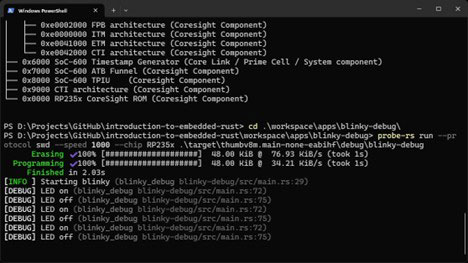
Press ctrl+c to stop.
GDB (GNU Debugger) is a powerful command-line debugger that allows you to inspect and control program execution, originally designed for C and C++ but now supporting many languages, including Rust. It lets you set breakpoints to pause execution at specific lines, step through code one line or instruction at a time, examine and modify variable values, inspect memory and registers, and view the call stack to understand how your program reached its current state.
To perform interactive step-through debugging, you can use probe-rs as a GDB server and connect to it with gdb-multiarch (from within the Docker container). First, find your computer's local IP address using ipconfig (Windows) or ifconfig (Linux/Mac).
Then start the GDB server with:
probe-rs gdb --protocol swd --speed 1000 --chip RP235x --gdb-connection-string <your-ip>:33033
Replace <your-ip> with your actual IP address (for example, 10.0.0.100:33033). This starts a GDB server listening on port 33033 that other devices on your network can connect to.
Back in the Docker container (with your Rust code), navigate to your project directory and start GDB with your compiled ELF file:
cd apps/blinky-debug
gdb-multiarch target/thumbv8m.main-none-eabihf/debug/blinky-debug
Once in the GDB prompt, connect to the server with:
(gdb) target remote <your-ip>:33033
Then use:
Copy Code(gdb) mon reset halt
to reset the microcontroller and halt execution at the start. You can now set breakpoints with commands like break main, continue execution with continue, step through code line-by-line with step or next, inspect variables with print
Note that GDB support for Rust and the RP2350 is still relatively new and can be buggy. As a result, you may encounter issues with certain operations or lose connection during debugging sessions.
You can add this launch.json file to apps/.vscode/ to enable graphical debugging in VS Code with GDB. However, I found this to be extremely buggy, as it’s still quite new. Use with caution.
For simple projects or quick prototyping, blinking LEDs or printing messages over USB serial/UART is often sufficient and requires no additional hardware. These methods work well when you just need to verify program flow or check a few values. As projects grow more complex, defmt with RTT provides efficient, low-overhead logging that won't significantly impact timing-sensitive code and uses minimal flash memory, making it ideal for production debugging and continuous monitoring during development.
Step-through debugging with GDB becomes invaluable when you need to diagnose subtle bugs, understand complex interactions between components, or inspect the exact state of variables and memory at specific points in execution. However, it requires additional hardware and can be more time-consuming to set up. The best approach often combines multiple techniques: use defmt for tracking program flow and logging key events, reserve step-through debugging for investigating specific problems, and keep simple LED toggling or serial output as a fallback when debug hardware isn't available.
In the next (and final) tutorial, we will dive into the Embassy framework for doing some concurrency through asynchronous programming.
Find the full Intro to Embedded Rust series here.